Introduction
For most Vuture clients with a typical integration to InterAction, the decision is made that Vuture should be able to “see” and write back to only Marketing Folders, and occasionally Working Lists. This is because the typical use of Vuture integrated with InterAction is to automate all aspects of email marketing. Projects to implement Vuture integrated with InterAction are therefore typically set up with Vuture having access only to Marketing (and sometimes Working) Lists.
However, sometimes clients wish to use the Vuture functionality to assist in updating internal-use folders such as Our Personnel Information. An example of this would be to send out an internal, all staff, survey asking everybody for their foreign language skills. This is now possible.
Pre-requisites
You will need to have Vuture integrated with InterAction.
You will need to be able to access the Folder ID numbers of your information folder(s).
You will need to know the full Information Folder name – to identify it in the list.
You will need to give Admin rights to the Vuture login entity in the relevant folders in InterAction.
Your Information Folder should have an Additional Field which is the information you need to get updated.
Process (If you have more than one instance of InterAction you may wish to test this on your Test Instance before running it on Live.)
Identify the folder to which you want Vuture to be able to write back.
· Give the Vuture login Admin rights to that folder.
· Check in the web client to find the Folder ID number. Here’s how:
InterAction Additional Field ID numbers are found in the Admin area of the Web client. If you do not have IAADMIN access to the Web client you will need to ask for help from your IAADMIN user.
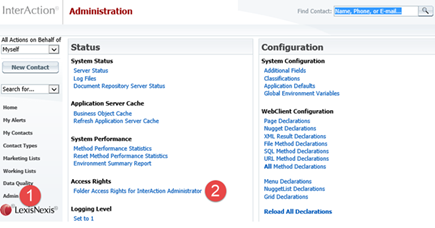
Log in to the web client as IAADMIN and click on Admin (1).
Click on Access Rights, Folder Access Rights for InterAction Administrator (2).
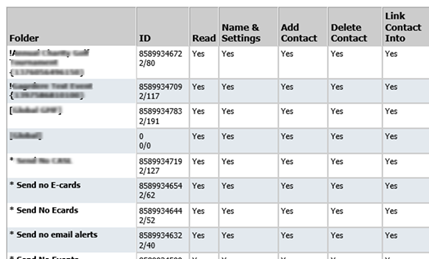
The Folder IDs are in the second column – the long number on the top line.
· Let your Account Manager know the ID number.
· Your Account Manager will go into the Admin area of your instance to the following location: “Admin.System.Interaction” and edit the XPath from something like this:

(Vuture AMs please note: the folderClassID could be different to this one. You will need to check for each instance.)
to say instead:

where the folderId named is the ID of the Information Folder in question.
You can now go into Vuture in the usual way, create an email to all staff, attach a response form and pull through the language options (for example) – inviting staff to tick the options which apply to them.
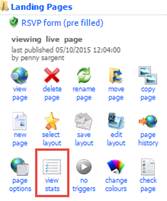
You can report on your results from InterAction or use the “view stats” button for your Landing Page in Vuture.