Set up the fields in Salesforce
The following steps will guide you through creating marketing preference and unsubscribe contact fields for the Salesforce integration in Vuture.
Step 1:
- Select app set up
- Contacts fields
- In contacts layout select fields
- Select section
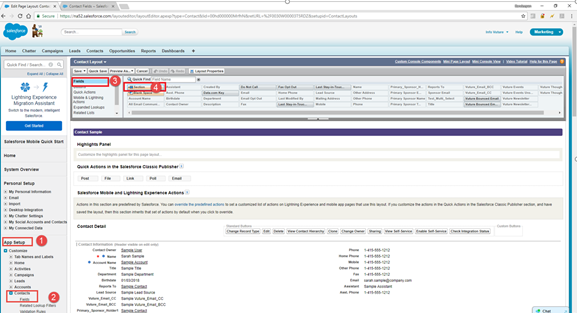
Step 2:
- Name section
- Select 1 column
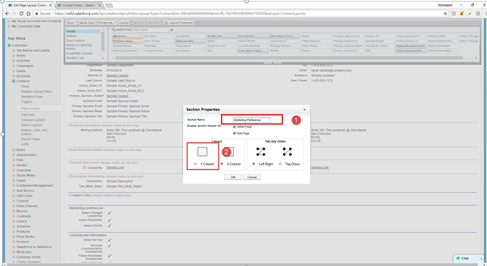
Step 3:
- Select contacts & fields
- Select new
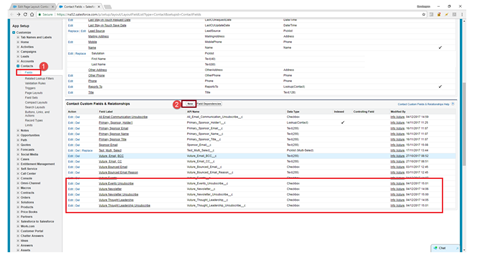
Step 4:
- Select the check boxes option
- Click next
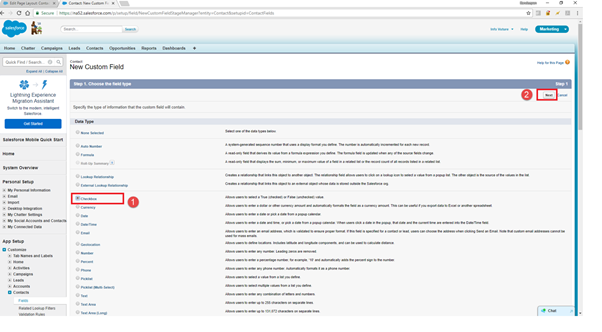
Step 5:
- Name the field label for example “Vuture thought leadership”. Notes field name will automatically prefill based on field label Vuture_thought_leadership
- Select unchecked
- Click next
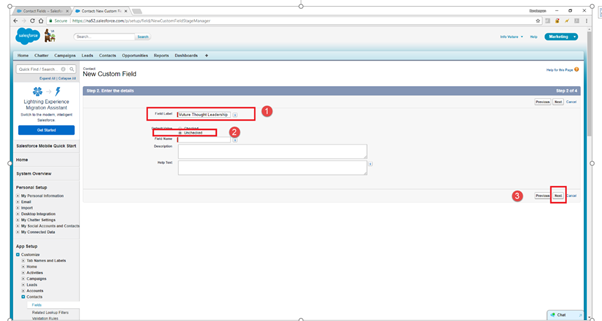
Step 6:
Make sure the Vuture account has the following security rights
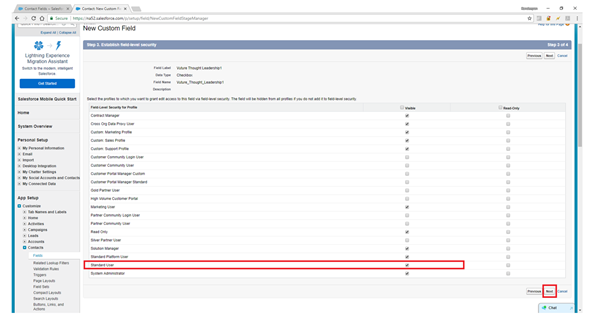
Step 7:
Deselect options in add to page layout
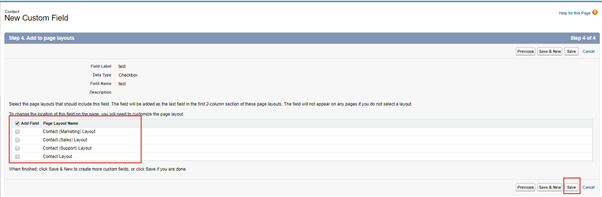
Step 8:
Confirm you can see the new field
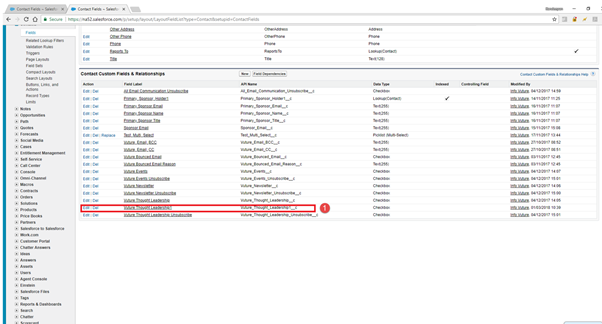
Step 9:
Click back into edit layout and add contact fields created as per above for both unsubscribes and preferences
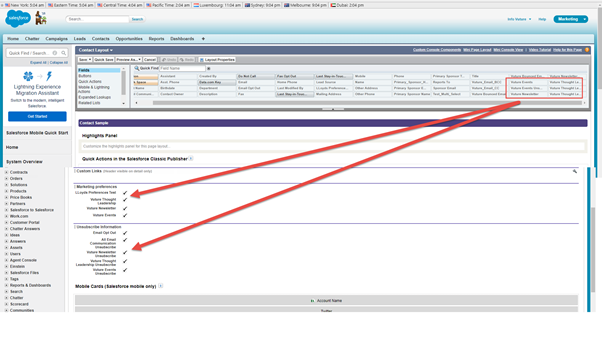
How To use the fields once they are created
The marketing preference and unsubscribe functionality within the Vuture Form Editor allows you to include preferences and unsubscribe option on both preference and unsubscribe forms.
Refer to steps 1 – 9 with regards to setting up contact fields for preference and Unsubscribes and then:
- Go to contacts
- Select fields
- Take the API name and Field label and supply it to your AM or PM in an excel spread sheet
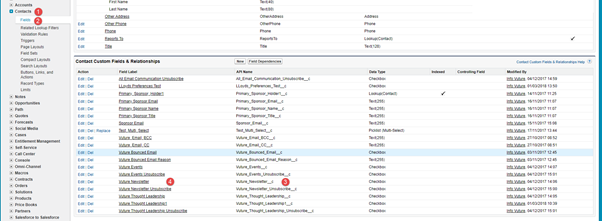
Marketing Preferences
Step 1:
-
Contact your Account manager if you are out of project or if you are in project please contact your Project Manager, they must create add the contact fields as objects in "Admin.System.Salesforce.MarketingPreferences" as shown in the example:
Key
|
Value
|
Vuture Newsletter
| Vuture_Newsletter __c
|
- Click on "Create Objects" to update the Vuture object in Salesforce with the new fields
- Save the changes
- Click "Validate" to confirm that the fields have been created correctly
IMPORTANT: If there is any issue creating or validating the fields, revert the change in the first point above and contact Vuture Technical Services
Step 2:
Go into the global forms and select the preference form. Under the Salesforce option please select marketing preferences, this will pull through the list created “Admin.System.Salesforce.MarketingPreferences”
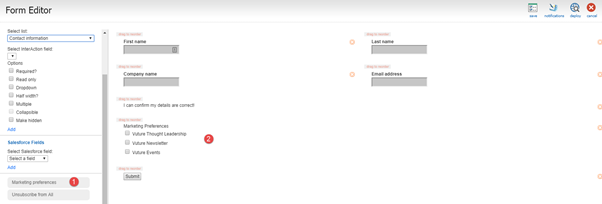
How does the Marketing preference Functionality work?
If a recipient checks the marketing preference form they will be added to the contact field against their record in Salesforce, if at a later date they decided they are no longer interested and un-check an option they will simply be removed from the contact fields. To confirm, this is not an unsubscribe, it is simply an opt-out. For unsubscribes, please refer to the section below
Unsubscribes
Step 1:
Contact your Account manager if you are out of project or if you are in project please contact your Project Manager, they must create add the contact fields as objects in "Admin.System.Salesforce.Contenttypes" as shown in the example:
Typically, this is done using at a content specific level and is not as granular as the marketing preferences. You will see the content types on send screen when you select the list source to send (Salesforce)
- Email
- Events
- Alerts
- Newsletters
Key
|
Value
|
Vuture Events Unsubscribe
| Vuture_Events_Unsubscribe __c
|
Step 2:
-
Click on "Create Objects" to update the Vuture object in Salesforce with the new fields.
- Save the changes
- Click "Validate" to confirm that the fields have been created correctly.
IMPORTANT: If there is any issue creating or validating the fields, revert the change in the first point above and contact Vuture Technical Services
Step 3:
Go into the global forms and select the Unsubscribe from under Salesforce option. Please select Unsubscribe from all option, this will pull through the list created "Admin.System.Salesforce.Contenttypes"
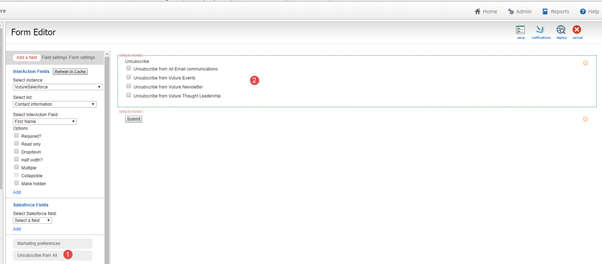
How does the Unsubscribe Functionality work?
If a recipient checks the unsubscribe option on a form they will be added to the contact field against their record in Salesforce. For example, if the recipient checks “Unsubscribe from events”, the next time that a list in which the contact belongs is sent an email type “Event” they will not receive the mailing as they have unsubscribed from that content type, they would still receive newsletters, alerts etc., email types.
