Overview
This Help Desk Article is to help guide you through some best practice while using Vuture's Payment Portal Module. It can be used for the standalone version and InterAction version of the Payment Portal Module.
Contents
Save the Date / Invitation / Reminder to Register Mailings
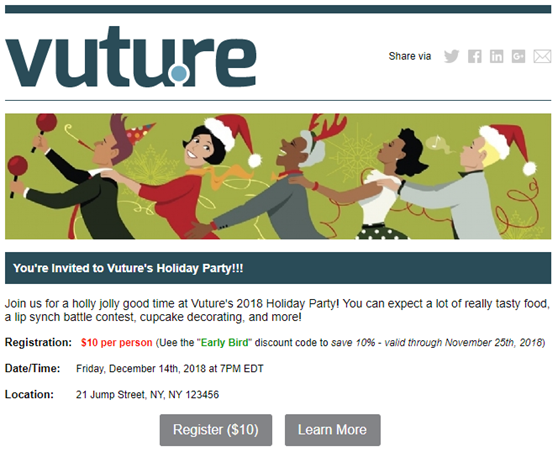
Make sure the Event Registration Fee is clearly stated in all mailings leading up to the event.
- You may even want to bold the actual amounts or make them a different color (e.g. $25 Registration Fee). As well as, include the Fee in your RSVP Call to Action button.
- If there is an early bird special – Make this known to the recipient.
- If registration will close on a certain date, also make this known to the recipient.
This should help to eliminate any surprises and have someone RSVP to your event, without completing payment.
RSVP Pages (Pre-Filled & Blank)
Keep in mind the following Best Practice Tips for your RSVP Pages (both Prefilled and Blank) to help discourage contacts from abandoning the registration process upon completing the RSVP Form.
This is likely a result of the below:
- Contacts don’t fully read the invitation, get excited, and navigate to the RSVP page. Upon hitting the submit button they are taken to the Payment page and realize they have to pay for the event.
- The information was not clear in the invitation and did not clearly state that this was a paid event.
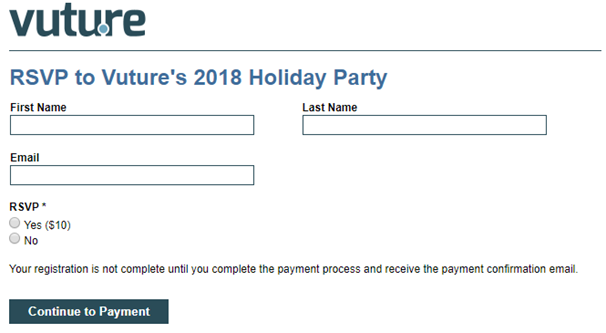
Make it very clear on your RSVP pages that this is a paid event.
Let the contact know what will happen once they submit the RSVP form to eliminate any surprises.
- Add the registration fee to the RSVP “Yes” option (i.e. Yes ($10).
- Add disclaimer text above the Submit button to let the contact know what will happen upon completing the RSVP form (e.g. “Your registration is not complete until you complete the payment process and receive the payment confirmation email.”).
- Change the “Submit” button text to “Continue” or “Continue to Payment”. This can be done by clicking into the Form to get to the Form Editor > clicking on the Submit button > going to “Field Settings” to change the button text. Then, remember to save out your form.
Payment Portal Page Set Up
Keep in mind the following Best Practice Tips when setting up your Payment Page(s).
Now that your contact has submitted the RSVP form, guide them through the Payment Process.
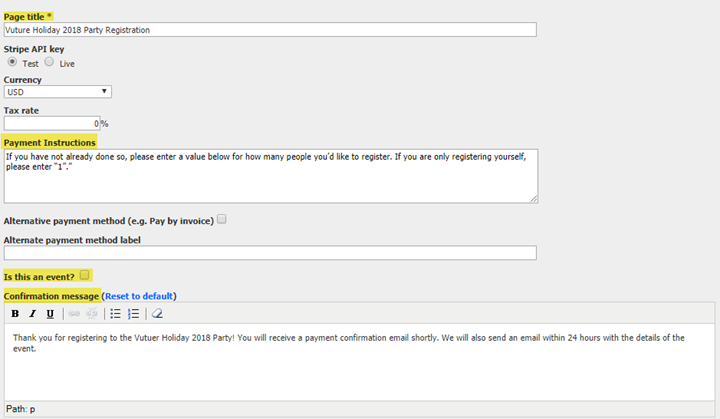
- Label the Page Title to match the name of the Event.
- Take advantage of the “Payment Instructions” and include some text as to what the recipient needs to do on the first page, to help eliminate abandonment. For example, “If you have not already done so, please enter a value below for how many people you’d like to register. If you are only registering yourself, please enter “1”.”
- Only check the “Is this an event?” checkbox if you are allowing contacts to pay for guests, too. Otherwise, leave this unchecked to save an extra step for the registrant.
- Or, consider asking guests to complete a blank RSVP form and submit the Payment form themselves. You can then limit your ticket option(s) to "1", so that they may only select "1" ticket.
- Take advantage of the “Confirmation Message” and let the registrant know what to expect next (e.g. they will receive a payment confirmation email, and/or a reminder with all details a week before the event, etc.).
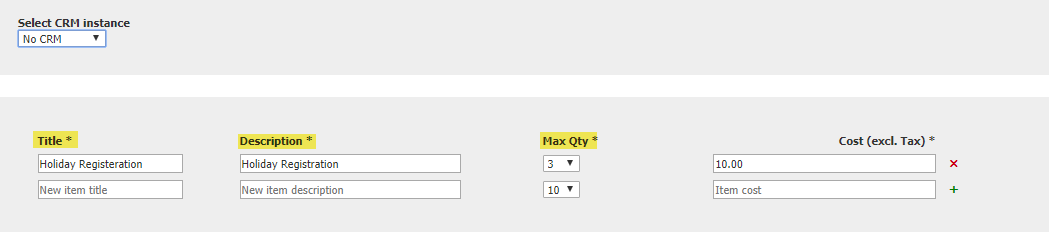
- Match your Title & Description fields for your ticket option. The “Description” field will be displayed on the Payments Page.
- Set the Max Quantity to “1” if you are not allowing registrants to pay for guests.
For InterAction Only:
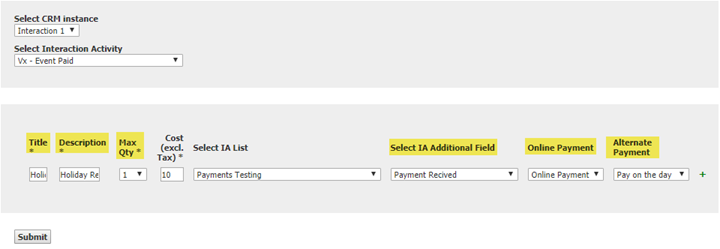
- Match your Online Payment (e.g. Credit Card) and Alternate Payment (e.g. Pay on the day) Values for the Payment Additional Field (e.g. Payment Received”).
Follow Ups (InterAction Only)
Send a follow up email to clients who have yet to pay. This can either be for contacts who have RSVP’d but did not complete the payment page or for clients who chose to “Pay on the Day” (or the alternative payment option you might have given). Both options are summarized below.
Option 1 – Contact RSVP’d / Did Not Complete Payment
Once we’ve created the Follow Up email reminding them to complete their payment, with a link to the Payment Page, we must filter our Marketing List to send this follow up email only to those who have RSVP’d Yes and did not complete payment.
Please follow these steps on how to setup your filter for this scenario:
- From the “Send Email” Screen, after you’ve selecting your InterAction Marketing List to send the email to, click on “New Filter”.
- Give your filter a title, following best practice = “Name of List or Event” – “Action”. For example, if our List is called “Payments Testing” and our action is “RSVP is Yes, Payment Field is Empty”, we would name our Filter ‘Payments Testing – RSVP is Yes, Payment Empty”.
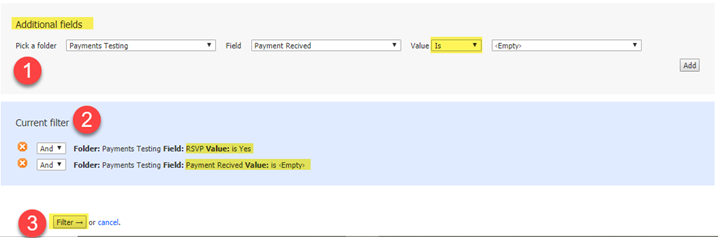
- Scroll down to “Additional Fields” section. Choose the same Marketing List you sent the email to (and is listed as your Marketing List on the Payment Setup Page for the ticket options), pick your Additional field for “RSVP”, Value of “is”, “Yes” (or Accept), then click “Add”.
- Navigate back to “Additional Fields” section. Choose the same Marketing List you sent the email to (and is listed as your Marketing List on the Payment Setup Page for the ticket options), pick your Additional field for “Payment Received” , Value of “is”, “”, then click “Add”.
- Lastly, click “Filter”.
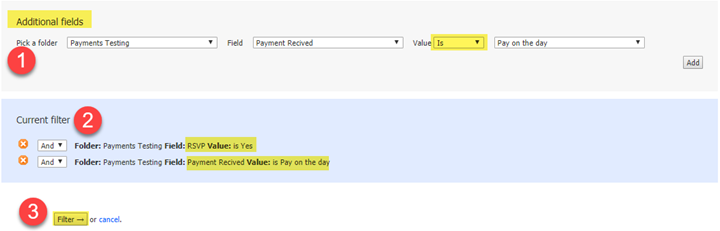
Please see screenshot below for setup. This should now filter your list for contacts who RSVP’d Yes and have an empty Payment Received additional field. You may now send your follow up email to these contacts.
Option 2 – Contact RSVP’d / Chose to Pay on the Day
Once we’ve created the Follow Up email reminding them to bring a check or cash on the day of the event, we must filter our Marketing List to send this follow up email only to those who have RSVP’d Yes and chose “Pay on the Day”.
Please follow these steps on how to setup your filter for this scenario:
- From the “Send Email” Screen, after you’ve selecting your InterAction Marketing List to send the email to, click on “New Filter”.
- Give your filter a title, following best practice = “Name of List or Event” – “Action”. For example, if our List is called “Payments Testing” and our action is “RSVP is Yes, Chose Pay on the Day”, we would name our Filter ‘Payments Testing – RSVP is Yes, Pay on the Day”.
- Scroll down to “Additional Fields” section. Choose the same Marketing List you sent the email to (and is listed as your Marketing List on the Payment Setup Page for the ticket options), pick your Additional field for “RSVP”, Value of “is”, “Yes” (or Accept), then click “Add”.
- Navigate back to “Additional Fields” section. Choose the same Marketing List you sent the email to (and is listed as your Marketing List on the Payment Setup Page for the ticket options), pick your Additional field for “Payment Received” , Value of “is”, “Pay On the Day”, then click “Add”.
- Lastly, click “Filter”.
Please see screenshot below for setup. This should now filter your list for contacts who RSVP’d Yes and have chosen to “Pay on the Day” (i.e. by check).