This new feature in Vuture’s Payment Integration allows clients the ability to create discount codes for use by their customers.
Please note that currently any discount codes that are created are available globally in the system and can be applied to any payment page.
How to enable/disable discount settings
Your Vuture Administrator will turn on the discount setting by going to “Admin.System.Payments” and enabling the discount settings.

How to add/edit discounts
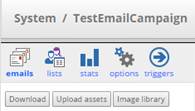
To access Payment Discount Management, in your campaign…
Go to options
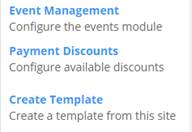
And Select Payment Discounts
This is the Payment Discount Management screen
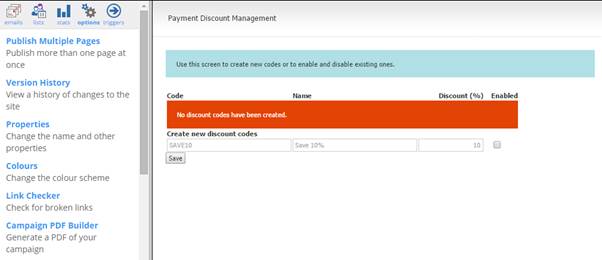
To add a new discount, input the code, name of your promotion, the amount of you want to discount and if you want to be enabled or not then click ‘Save’.
NOTE: The discount has to be from 0 to 100 or the code will not be allowed to be added.
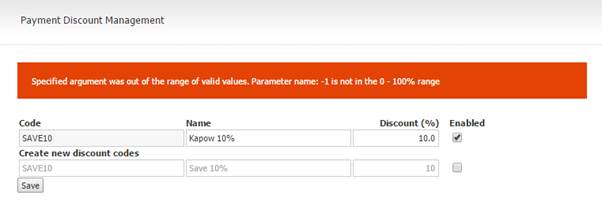
The discount code is now added as shown:
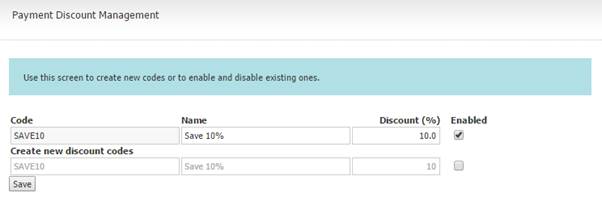
Once you have added a discount, you can edit the name, discount amount and if it’s enabled whenever you like.
How do customers add discount codes
Customers can use a discount code by first reaching the confirmation screen as shown below:
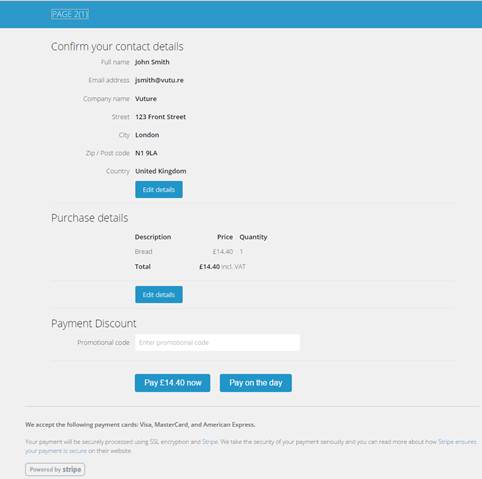
The customer types in the promotional code and then click either ‘Pay [Amount] now’ or ‘Pay on the day’ as normal.
As you can see below when a discount code is added, a couple of things are shown:
The customer has to click either pay button again to reach the pay or success screen as normal.
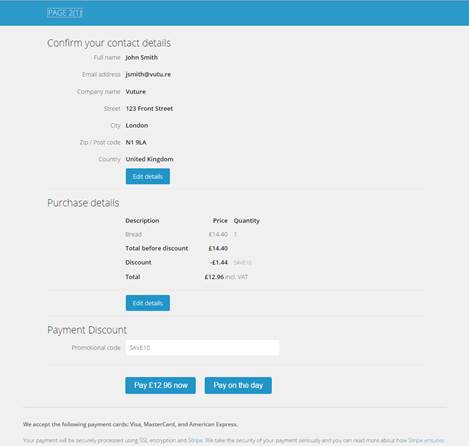
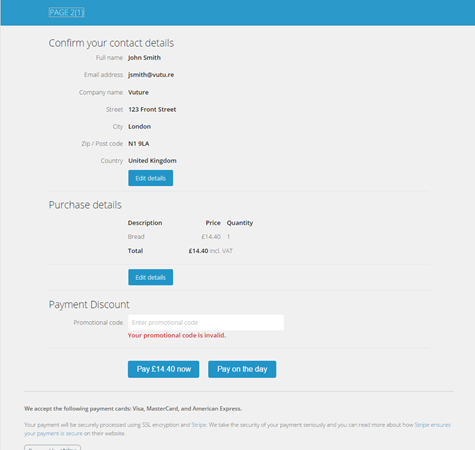
If a customer enters a code that has been disabled or doesn’t exist then an error message appears and the customer will have enter a new code or perhaps continue without a code.
What happens with 100% discounts and payments below the minimum Stripe amount.
If you want to have discounts that makes the final payment free, you can. To do this, in the ‘Discount (%)’ field, type in ‘100’.
In the confirmation screen, when the discount code is entered, the two pay buttons are replaced with one ‘Complete’ button.
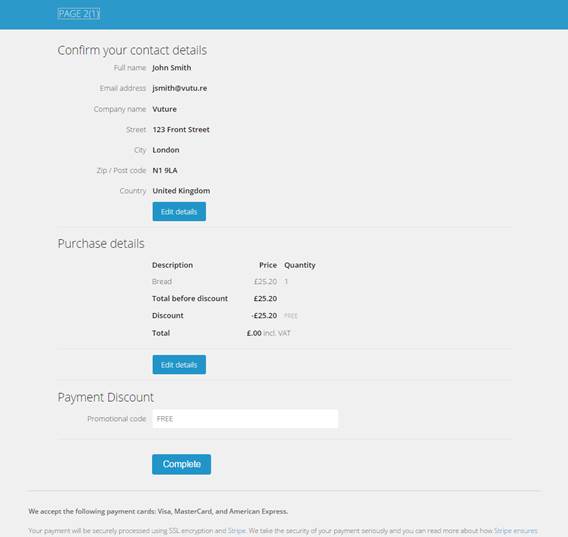
The complete button also appears when the final total is below the minimum amount you can charge with Stripe.
To see the minimum amount you can charge with Stripe, click this link: https://support.stripe.com/questions/what-is-the-minimum-amount-i-can-charge-with-stripe
