Overview
Each time a page is published the previous version is saved into the "_history" folder for that website so that it can be viewed and restored if necessary.
Over a period of time a large number of history files can be generated slowing down the performance of the website and taking up disk space.
A scheduled Vuture task can be set up to clear out history files on a regular basis either by removing those older than a certain date and/or keeping a given number of recent versions.
How to setup history cleanup
A Vuture Administrator will need to set this up.
The two settings that control which history pages are cleaned up can be found at "Admin.System.Page Options.Number of Page versions to Retain" and "Admin.System.Page Options.Number of Days to Retain History Pages"

The clean-up process will look a both of these values and for each website use whichever value keeps the greatest number of previous versions.
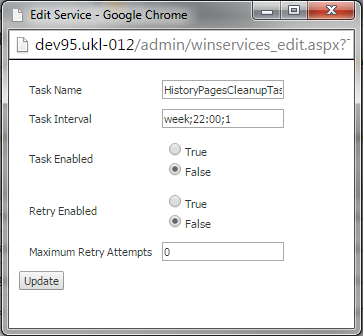
To schedule and enabled the process go to "Admin.Services" and find the "HistoryPagesCleanupTask" and click "Edit".

In "Task Interval" enter the frequency of the clean-up (options are "month", "week", "day", "hour"), the time to start and the interval between each check. In the screenshot below the check will be every 1 week at 22:00.
Set "Task Enabled" to true (leave Retry enable as false) and click "Update" to enable the task.