If you would like to automatically:
- include personalised image files (for example, partner signatures to e-card or emails, so that each card is automatically “signed” by the sending partner)
- include images that are personalised based on the recipient or a recipient preference
- link to a personalised file per receipient (e.g. Word, Excel, PDF etc.)
then this article describes two different methods of achieving that.
Option One - changing the html
Prerequisite: You will need to be able to change the html code on the page. However, once created, it could be saved as a new snippet for reuse.
- Create an email campaign, or an e-card, with personal message placeholders.

- Upload sender signatures as .png or .jpg images into a dedicated container in the Image Library which you do not use for campaigns. (Do not use an Uploads folder in the campaign.)
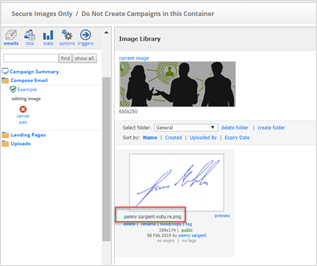
You will see that uploading an image file named as an email address will automatically lose the @ sign as part of the upload. We will replace these – signs with the necessary @.
The images will need to be:
- sized correctly
- on a transparent background (unless they are always going to be on a white page). Vuture's Front End team can advise on this.
- Each image should be re-named as the appropriate partner’s email followed by .jpg or as appropriate. The system will automatically rename any file name containing an @ to a – so we will need to change the code.
- We will need a default signature file for the case where the partner’s signature is missing.
- We will need to test the client template to ensure that inserting the image file does not damage the existing page in any way.
Add the line referencing the images into the html on the page like this:

You will need to use the full address of the file like this: https://sites-penny.vuturevx.com/99/_images/General/penny.sargent-vutu.re.png
We recommend that you use {From Email} because those are generally accurate and consistent. {From Name} could be mis-typed as Rob Robin Robert or just R for example.

You can see from the example image above why the image should be on a transparent background, and you may need Vuture's Front End team assistance to center the image, but this method has inserted the correct signature file automatically, on Send.
Option Two - using an _uploads folder in your campaign
An update is available to allow you to upload CSV, XLS and XLSX files to an _uploads folder in your campaign.
Click on the folder then use the multi-file uploader to upload your files. It will not rename them.
You would have to add an _uploads folder to your templates and any existing campaigns you want to use this in. Talk to your Account Manager about getting this _uploads folder added to your master templates.
Vuture note: the Jira for this is here ( https://jira.vutu.re/browse/PS-4001)
