This article provides information on how to configure a Salesforce OnePlace text field in Vuture and display it as a picklist on the form. This saves time when you have fields on forms you would like to be picklists but their values change from campaign to campaign. This way, for a field like Event Location, you can provide picklist values for the form without editing the field in OnePlace.
Supported OnePlace Fields
In OnePlace, the field must be custom and either be a Number or Text (up to 255 characters) to write back to OnePlace from a Vuture picklist. Text fields in OnePlace accept multiple values, number fields can only accept one value. Multiple values will be written back to OnePlace with a pipe " | " between each selected value. The objects supported in OnePlace are Contact, VxFormSubmission and Function Invitee and Publication Subscriber. If you have created a new field that you would like mapped please send the API name and Object to your Account Manager to have them add this to your Forms.
Form Editor Step-by-Step
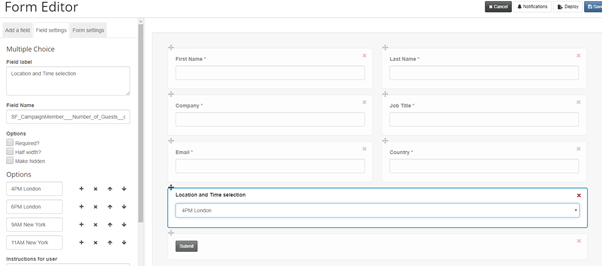
1. In the Vuture Form Editor, select the OnePlace field you would like to write back to and select Radio, Dropdown or Multiselect and select Add Field.
2. The field will now populate with picklist selections that you can edit. Use valid data for the field you’re writing back to and make sure the values match on the pre-filled and blank forms, so that if a contact submits data and then opens a prefilled form in the future (for example on a preference form) the selections are retained correctly.
3. Save the form, publish and test.