Overview
Using Compare Text Changes, you can analyse changes made to the text and images in an email campaign, a print document or a web page. You can compare any version to another version.
Contents
How to compare versions
How to compare versions
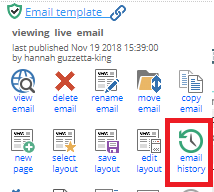
In your email click the email history icon
To compare, select which versions you want to compare by clicking the down arrow in the Compare Text Changes column.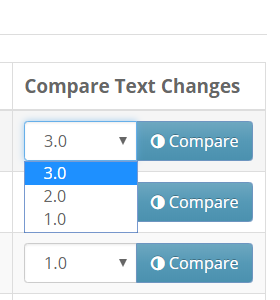
Each page version can be compared with any preceding versions.
For example:
- The last published (live) version or a draft version can be compared with version 2.0 and version 1.0
- Version 2.0 can be compared with 1.0
- Version 1.0 version can't be compared with any other versions as it is the first version of the page
- Once the desired versions are selected, click Compare to run the comparison.
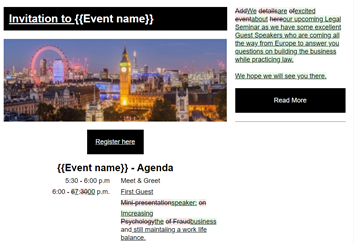
The comparison will appear in a new tab on your browser. Changes to text are displayed in the Track Changes format with additions in green and deletions in red strike-through. Changes to images will appear by graying out the old image.