Dynamic Content for Intapp
What is Dynamic Content?
Dynamic Content is content which is present, in an email or on a form, but only displayed to a contact based on the field values held against their contact record in the CRM.
For Intapp CRM, dynamic content can be controlled by Contact Core fields, Contact entity fields, Form Submission fields and with Invitee/CampaignTarget entity fields for both emails and forms.
Dynamic Content markers are placed as tags against snippets of content. When the email is sent out, the content will show/hide based on the contact preference topic or the RSVP values held on the CRM.
For example: Build a regular newsletter containing all the thought leadership across all the practice areas. The topics will only appear if the contact has that practice area marked as a preference in the CRM.
Prerequisites
-
The latest filter screen. This screen, and how to use it, is described in a Knowledge Base article here.
-
The new filter screen is enabled at Admin.Roles.Spacelab Pages.Email Filters
-
Enabled config at Admin.System.Emails.Enable Dynamic Content
-
To configure the fields which we are going to use for Dynamic content in the Crm Metadata Manager
Admin>System>CrmManager>Crm System Config (Click Here)>Custom Fields
Select Entity and select field and hit Save
How to Apply Dynamic Content Tags to your Content
Step 1 Depending on the type of dynamic content you wish to send out, first ensure that the contacts in your CRM have some preferences marked against their Contact Entity or values on the Invitee/Campaign Target Entity, after a contact has submitted an RSVP form. (See the prerequisites list above for adding custom fields).
Step 2 Create your email page or your form. Example: For a single newsletter sent to everybody on a list, but where people should only see the content appropriate to their preferences, create a newsletter campaign as normal, and add individual snippets of content one after another to your page like this:
|
Heading/Title/banner images etc
|
For every reader
|
|
Introductory paragraph snippet
|
For every reader
|
|
Text snippet covering Banking matters
|
Will only be displayed to readers interested in Banking
|
|
Text snippet covering Tax matters
|
Only for readers interested in Tax
|
|
Text snippet covering Oil & Gas matters
|
Only for readers interested in Oil & Gas
|
Each text snippet must be separate. And each text snippet should cover only one area of interest. If you mix topics or preferences inside a single snippet it will be very difficult to filter that snippet in or out.
Any reader who has more than one preference marked in the CRM will get as many snippets of news as apply to them. You can add as many snippets as you like to your total newsletter.
The introductory paragraph snippet (marked in the table above as For every reader) is recommended best practice, in case you have a reader with no preferences marked. To avoid the possibility of sending them an email that is entirely blank apart from the header, add a general interest paragraph at the top, appropriate for every contact.
Step 3 Tag each snippet. To tag a snippet, first switch to Edit Layout mode, right click on the snippet.
In the menu, select Dynamic Content.
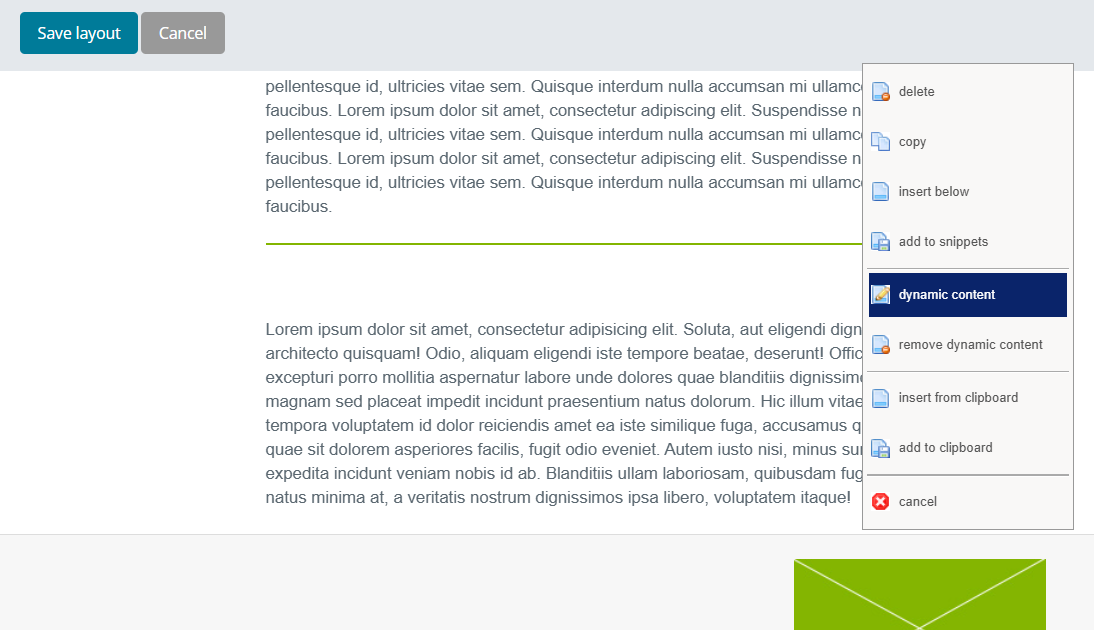
The Filter screen will open
Either give your filter a title to create a new one, or choose a pre-existing filter from the drop down list on the right of the screen.
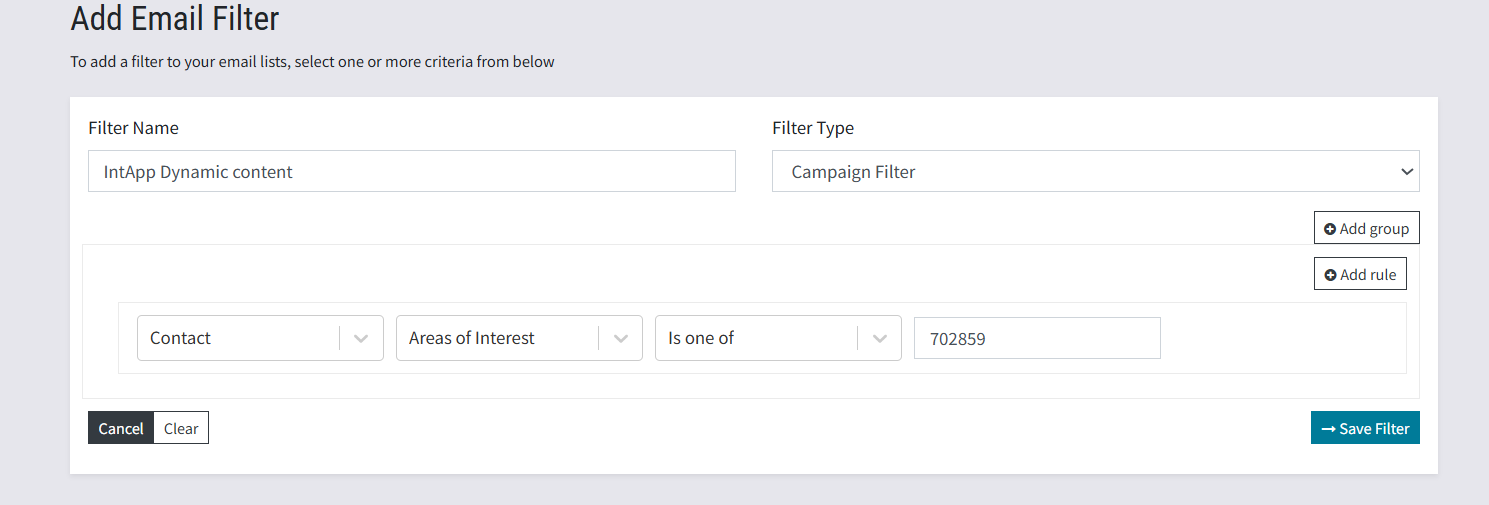
In this example above, the filter name is clear and obvious. Selecting a Contact field, users should find the Area Of Interest held in the CRM. (The example above is linked to a test database and the AOI may differ. This is just an example of a testing CRM - yours will be different.)
Save the filter.
You will be returned to the campaign to apply a new tag to the next snippet.
In Edit Layout mode you will be able to see the tag against the snippet like this:
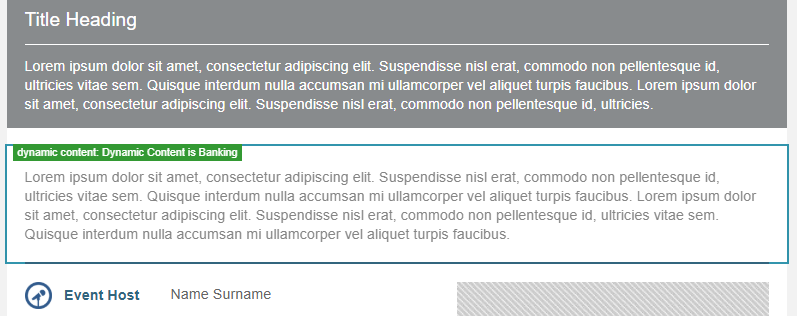
This tag will not be visible in the client’s view of the email.
Working with multiple preferences
Note: If you wish to tag a snippet of text with more than one preference, you can use OR to add a new Rule. Like this:
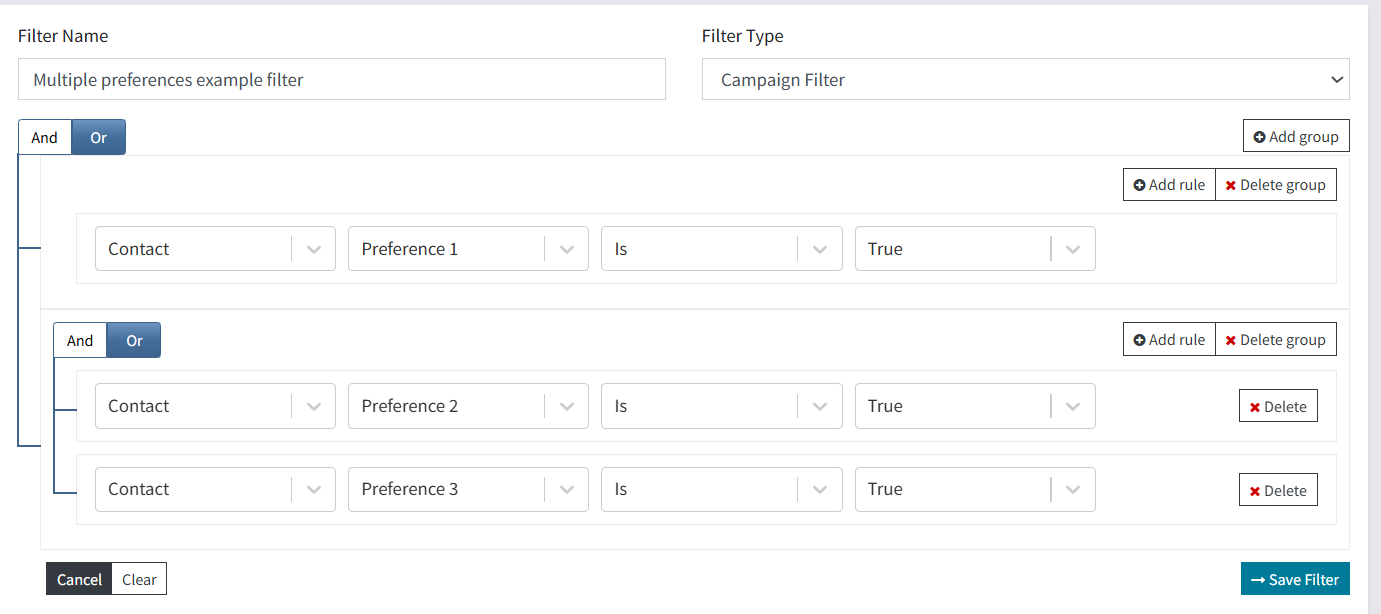
You cannot mix AND and OR in a Group but you can set up new Groups or new Rules using OR over and over (either will work) to tag a single snippet with as many preferences as you like.
FAQs
1. Once you add in the Dynamic Content to your email, can the text of the email be changed? If it can be changed, do we have to add in the dynamic content again?
Yes the text can be changed. Content is made dynamic by adding tags to the snippet. So it is the snippet that is dynamic and not the words or text within it. Meaning you can make the snippet dynamic and then edit the text, images, links inside it, as much as you like, before you send.
2. When setting up Dynamic Content, do you have to set up separate additional information fields for each piece of dynamic content or can you use a Field Type of List field and select from the list items?
Both options are possible.
For example, you can use field options that might be called ‘Area of Interest’’ and appear as check boxes on the client preference form e.g. Finance, Legal, Fiduciary, Environmental etc.
Or, a dynamic snippet can be tagged with an additional field of Accept or Declined for a particular event.
Dynamic content does not work with Lists, it works with fields held against Entities, as explained above. However, it may be that some fields held against an Entity have the field type of Pick List. These will work.
As long as the contact is in the selected mailing list and has chosen some of those field options in advance of the email send, they will only see those snippets of information tagged with the relevant additional fields.
Warning: If a contact has no preferences or areas of interest marked in the CRM there is a risk that they would receive a completely blank email. To mitigate this risk, introduce the newsletter (for example) with a generic paragraph of news or thought leadership which all recipients will get, no matter what their preferences. To do this, do not tag the introductory paragraph with any dynamic content.
3. How do you delete a Dynamic Content filter?
These are just normal email filters so you can delete a filter by going into any email campaign in the container you created the filter, click send email, select the list that the filter was created against, select the filter to be deleted then click delete filter. Alternatively, use the Triggers and Filters Dashboard, also called Entity Dashboard, to see all Triggers and Filters and delete the filter from there.
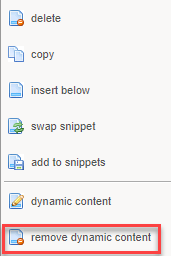
To remove a tag, in edit layout mode, right click on the tagged snippet and select remove dynamic content.
4. Can I use Dynamic Content on a landing page (e.g. Thank you page) to display blocks of content, depending on how someone responded to an additional field on the form?
For example, could I have a single Thank You page with a snippet (block of content) that would only be displayed for those who RSVP'd yes and a snippet that would only be displayed for those who RSVP'd no?
No, this is not possible on a landing page. There is not enough time for the additional field information to write back to the CRM and then communicate this back to Vuture. Instead, it would display blank content on the Thank You page and neither message would appear. Dynamic content can be used on email campaigns and on forms. Not on thank you pages.
5. Must the fields on the Contact Entity or the Invitee/Campaign Target Entity be of a particular field type?
Answer- We have tested this feature with many different field types in IntApp including Y/N or Boolean fields, Text fields including Text Contains, Is/Is Not, MultiLookup fields and Pick Lists and Multi-Pick Lists. If you have a field type not mentioned here we recommend careful testing first. Generally connector CRM supports only five types of fields in filters - Boolean, MultiLookUp, MultiPickList, PickList and Text.
