Keywords: marketing lists; mailing lists; interaction; archive; archiving; list owner; folder type;
The list of lists available on InterAction when you go to
send a mailing from Vuture can become very long and hard to work with. However, you may not always be ready to
delete the lists that you are no longer using.
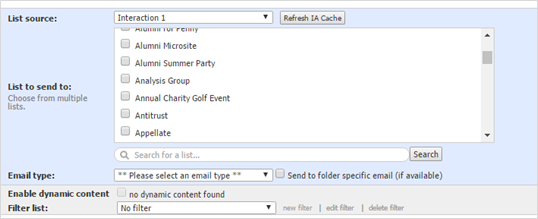
If you don’t want to have to scroll down a very long list of
folders, looking for the latest ones you are still using, you could consider
the alternative to deleting lists which is to Archive them instead. This removes them from view for everybody
except the System Administrator (usually the person with the IAADMIN password)
but keeps them in a separate folder from where you can bring them back later if
necessary.
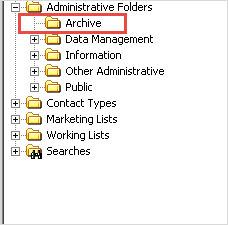
To archive an unneeded folder or mailing list, simply change
the owner to the System
Administrator User and delete all other access rights to the folder.
This effectively removes the folder from use. InterAction also provides an Archive folder type you can assign to archived folders to make it easy to review
and delete them later. The change of
folder type also gives another reason that Vuture Vx can’t access them because during
your integration configuration you generally had Marketing Lists defined
as the folders that Vuture could access, not Administrative Folders.
Here’s how to do it:
1. Log in to InterAction Windows Client as the System
Administrator User.
2. Find and open the folder to archive.
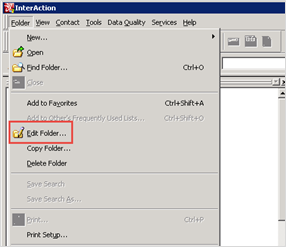
3. Choose Folder Edit Folder
from the top menu headed Folder.
4. From the View list on the left select the Security
icon.
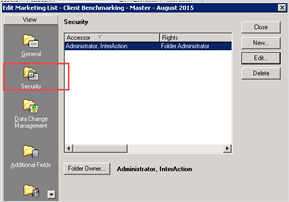
5. Choose the Folder Owner button.
6. Enter the account name for the System Administrator User
in the New Owner box, then choose OK.
|
Note: By default, the System Administrator
User account is IAADMIN. |
7. When prompted to confirm the change, choose Yes,
then choose OK.
8. In the Access Rights list, select the line for the
previous owner’s access rights, then choose Delete.
9. Delete all other access rights, except for the owner’s.
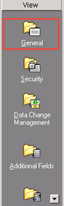
10. From the View list on the left, select the General
icon.
11. Edit the Name to include the current date. This
is useful later, when determining when, or if, to permanently delete a folder.
It is also necessary since folder names must be unique – by renaming the
archived folder, you make the folder name available for a new folder.
For example, when archiving the folder called “Y2K Seminar,”
you could change the name to “Archived Jan 2016 - Y2K Seminar.”
12. Next to Type or Contact Type Group, select
the Show All check box. This updates the drop-down list to include types
from all folder classes. Normally the Type
or Contact Type Group list only includes items for the folder’s class.
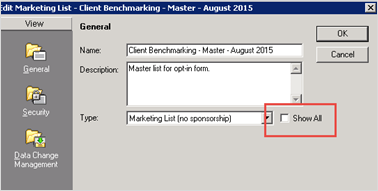
13. Change the Type to Administrative Folder -
Archive. Note that this changes the folder to an Administrative folder,
which never appears on the Web Client and generally does not appear in
Vuture (although it is possible to get your account manager to change your
configuration if required for some other reason).
14. Choose OK. The System Administrator User is now
the only user with access to the folder. The folder will no longer be available
to any other users, including Vuture Vx.
This How To document is available for you to download below.
