Vuture integrates with InterAction by using LexisNexis InterAction Web API. It is possible for you to emulate these API calls within a web browser in order to better understand what data flows between InterAction and Vuture.
In order to successfully emulate the API call you will need to do the following:
- Ensure you are able to login to InterAction as InterAction user (you will need to know your username and password) or know the IAAMDIN password
- Have the web URL you use to access the InterAction Web Client
- Know which API call you will be emulating.
- For API’s that require a contact, identify a suitable contact, and know the IA Web ID for this contact
- For API’s that require a folder, identify a suitable folder and know the IA Web ID for this folder
- Structure the API call to contain the correct URL, credentials, method call and parameters
- Know what the Location types weighting for each is within your InterAction environment
Identify your InterAction URL
If you are an active user, log into the InterAction Web Client by double-clicking on the desktop icon, or launching Internet Explorer and navigating to InterAction as you normally do The URL you need is the format: http://mycompany.com/Interaction/
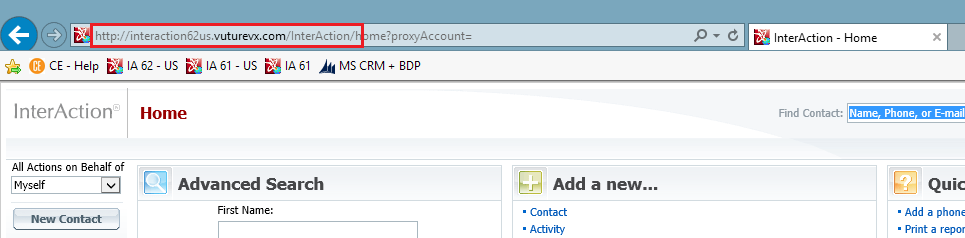
Identify the API call you wish to emulate
In this example we will use the API call findContacts which retrieves contact information from InterAction and has the following format:
findContacts
GET: {Interaction.Url}/findContacts?accountName={Account}userPassword={Password}contactId={contactId}
Identify a suitable contact and find their IA Web Client ID
Either create a new contact or modify a contact to contain the following details:
- First and Last Name
- Is associated with a company
- Has at least one address and phone
- Has the following email addresses
Search for this contact in the Web Client and take note of the URL in the browser’s address bar. You will need the portion that reads as
contactID=8588995593

Structure the API call
The table below shows how to structure the API call to your InterAction environment.
Once you have completed the structured the API call, double click or copy paste the link to open this in a browser window.
Understanding the data returned by the API call
The data returned is in XML format, and is divided into several “nodes” where each node represents a grouping of data from the contact record. The email address returned is held with the electronicAddress sub-node in the following node structure:
-
methodResponse = the entire results, including any errors
-
results = the contact data subnode
-
ape = the subnode containing all address, phone electronic address data
-
electronicAddress = the subnode containing the email data for the contact
Changing data to see different email address
This is possible in one of two ways, either by changing the weight of each Location Type in InterAction or by altering the data on the record to have different email address combinations.
Altering the Location Types in InterAction applies to the entire system, affects all contact data and will require a cache refresh to take effect. This is best carried out on a test system to avoid any user or integration issues. The option to alter the contact record is easily achieved within InterAction without affecting other users., and sample flow is described below:
- Edit the contact to remove the Business email address and run the call again = this will return the Business2 email address
- Edit the contact to remove the Business, Business2, AltBusiness email addresses and repeat the call = this will return the Home email address
